

Imagine this: you’re ready to dive into your favorite playlist or binge-watch that show everyone’s been raving about, but your AirPods are just sitting there, looking pretty and disconnected. Connecting AirPods to a Windows PC might seem as daunting as deciphering hieroglyphics, but it’s easier than finding the last slice of pizza at a party.
With a few simple steps, you can transform your AirPods from fancy paperweights into your new favorite audio sidekicks. Whether you’re working from home or just trying to escape the chaos around you, having your AirPods connected to your PC can elevate your experience. Let’s break it down and get those earbuds working with your Windows device, so you can enjoy seamless sound without the hassle.
Understanding AirPods Compatibility
AirPods connect seamlessly with various devices, including Windows PCs, but some factors influence compatibility. Apple’s AirPods utilize Bluetooth technology, enabling wireless connectivity with many devices. Windows versions play a significant role; Windows 10 and later versions provide improved Bluetooth support for these earphones.
The Bluetooth version of a Windows PC affects performance. AirPods function best with Bluetooth 4.0 or higher. Devices with older Bluetooth versions may experience connectivity issues or reduced audio quality. Checking the Bluetooth specifications is essential before connecting.
Operating systems also matter. AirPods perform well on Windows PCs, but users might encounter some limitations. Features like automatic device switching and access to Siri may not work on Windows systems. Users should keep these limitations in mind when using AirPods with a PC.
Drivers require updates for optimal functionality. Ensuring that the Bluetooth drivers on the Windows PC are current increases the chances of a smooth connection. Outdated drivers can lead to connection failures or poor sound quality.
Compatibility with audio formats provides another consideration. AirPods support AAC and SBC codecs, which are widely used. Windows PCs must support these codecs to deliver the best audio experience. No support for these formats may result in suboptimal performance.
Ensuring compatibility encourages a hassle-free audio experience. Users must review their devices to guarantee a successful AirPods connection. Those who assess their PC’s specifications will enhance their listening experience while using AirPods.
Preparing Your Windows PC
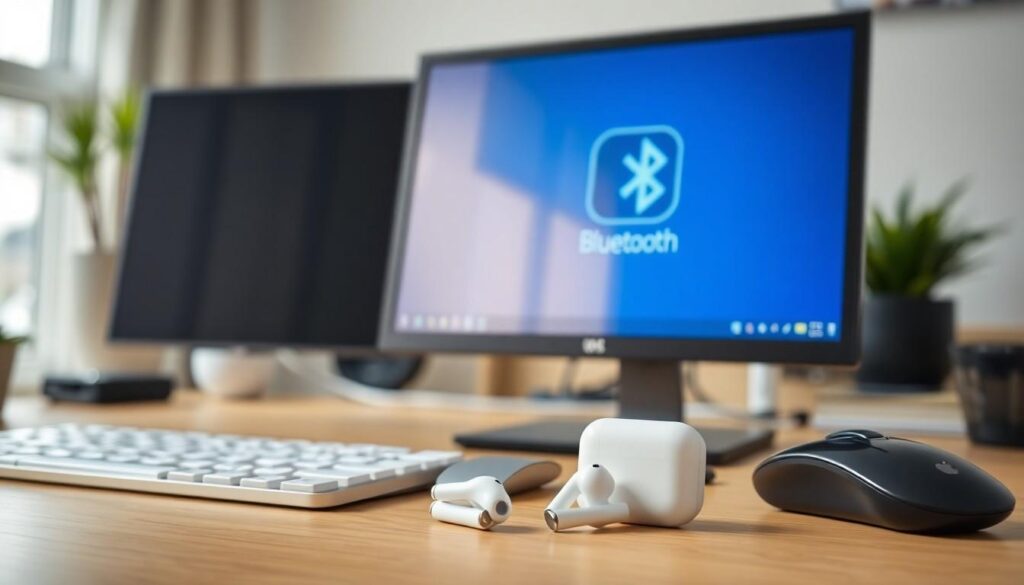

Before connecting AirPods to a Windows PC, ensure the device is ready for Bluetooth connectivity. This preparation includes checking both Bluetooth availability and updating the operating system.
Checking Bluetooth Availability
First, open the “Settings” app by pressing Windows key and “I.” Next, select “Devices” and look for “Bluetooth & other devices.” If Bluetooth is disabled, toggle the switch to enable it. Identifying whether the PC supports Bluetooth 4.0 or higher is critical since AirPods function best with these versions. Users can check the specifications through the manufacturer’s website or the user manual. If Bluetooth is absent, consider purchasing a USB Bluetooth adapter as a suitable alternative.
Updating Windows
First, ensure the operating system is current for optimal compatibility. Open the “Settings” app again and navigate to “Update & Security.” Click “Windows Update” to check for available updates. Install any pending updates as they may enhance Bluetooth performance and overall system functionality. Restart the PC after installation to apply updates properly. Regularly updating Windows supports not only Bluetooth enhancements but also security improvements, vital for maintaining a smooth user experience.
Connecting AirPods to Your Windows PC
Connecting AirPods to a Windows PC involves straightforward steps. Users can enjoy an enhanced audio experience by following the outlined instructions.
Step-by-Step Pairing Instructions
- Open the Action Center by clicking the notification icon on the taskbar.
- Select the Bluetooth option to turn it on if it’s off.
- Press and hold the button on the back of the AirPods case until the LED light flashes white, indicating they are in pairing mode.
- Click on “Add Bluetooth or other device” in the Bluetooth settings on the PC.
- Choose Bluetooth from the list and wait for the AirPods to appear.
- Click on the AirPods name to connect. After a successful connection, users hear a chime in the AirPods.
These steps enable a seamless pairing process, enhancing audio enjoyment.
Troubleshooting Common Issues
Pairing complications sometimes occur. First, ensure Bluetooth is enabled on the PC, as this is essential for connection. If the AirPods do not appear, restart the Bluetooth service by toggling it off and on. Checking if the AirPods are charged can prevent connection frustrations. Users may also try removing the AirPods from the Bluetooth list and reconnecting them. Updating Bluetooth drivers through the Device Manager can solve compatibility problems. Finally, nearby devices may sometimes interfere, so keeping other Bluetooth devices at a distance may help. These solutions can resolve most connection issues efficiently.
Alternative Methods
Users can explore various alternative methods to connect AirPods to a Windows PC. These options may enhance functionality and accommodate different user preferences.
Using a Bluetooth Adapter
Using a Bluetooth adapter provides a straightforward solution for connecting AirPods. Users without built-in Bluetooth can purchase USB Bluetooth adapters, making the process seamless. Selecting an adapter that supports Bluetooth 4.0 or higher ensures optimal performance. Plugging the adapter into a USB port activates Bluetooth functionality, allowing users to follow the same pairing steps as usual. Many reliable adapters are available, often at affordable prices, making them a practical investment.
Connecting via Audio Jack
Connecting via the audio jack isn’t possible directly with AirPods, but it offers alternative options for those wanting wired connections. Using a Lightning to 3.5mm headphone jack adapter allows users to connect AirPods to devices that accept traditional audio connectors. While not a true wired connection for AirPods, this approach may help users access audio on devices without Bluetooth capabilities. Many laptops and PCs have headphone jacks that work with wired headphones, broadening audio options for users.
Connecting AirPods to a Windows PC opens up a world of enhanced audio experiences. With the right setup and a few simple steps users can enjoy their favorite music or shows seamlessly. It’s essential to ensure Bluetooth compatibility and keep drivers updated for optimal performance.
While some features may not be available on Windows, the core functionality remains strong. By following the outlined steps and troubleshooting tips users can maximize their AirPods’ potential with their PCs. Embracing this technology not only enriches daily tasks but also provides a more enjoyable way to engage with digital content.


