
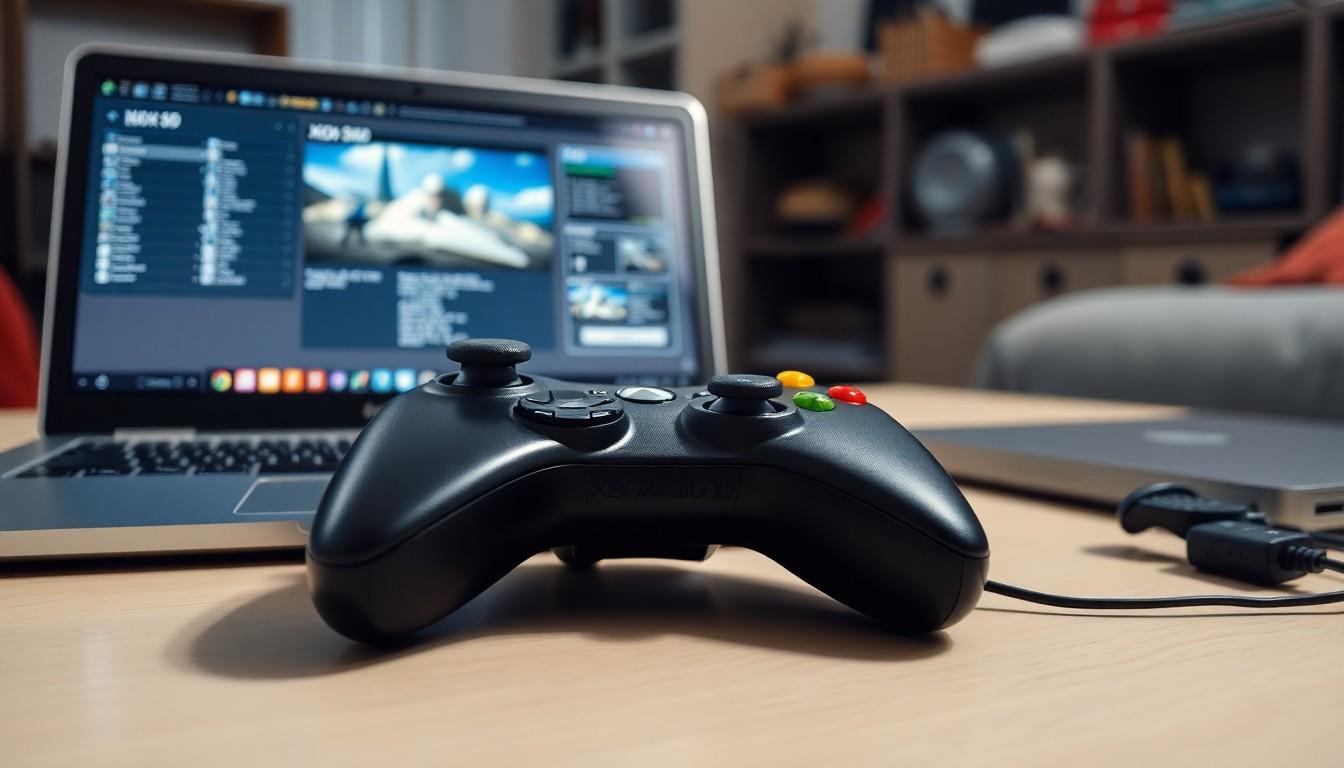
Imagine this: you’re all set for an epic gaming session, snacks at the ready, and your trusty Xbox 360 controller sits there looking lonely. Why let it gather dust when it can join the fun on your PC? Connecting that controller is easier than finding a hidden Easter egg in your favorite game.
Understanding Xbox 360 Controller Compatibility
Compatibility exists between the Xbox 360 controller and PCs running Windows. Windows XP, Vista, 7, 8, and 10 support the Xbox 360 controller. Users can connect either wired or wireless versions, offering flexibility for various setups.
Wired controllers use a USB connection, which provides a straightforward plug-and-play experience. Just connect the controller to an available USB port. Windows automatically recognizes the controller, requiring no additional software installation.
Wireless controllers offer more freedom of movement. An Xbox 360 Wireless Gaming Receiver can establish a connection. This receiver allows the wireless controller to communicate with the PC. Users must install drivers for the receiver if not automatically detected. Head to the official Microsoft website for the latest drivers.
Compatibility with games also plays a significant role. Many PC games natively support Xbox 360 controllers, ensuring functionality right out of the box. Popular titles such as “Minecraft” and “Forza Horizon” recognize the controller without any configuration changes.
Testing game software compatibility is straightforward. Players can start the game and check if the controller input responds as expected. In case of issues, checking the game settings for controller configuration might help resolve the problem.
Drivers can be updated through Windows Update or the Device Manager. Keeping drivers up-to-date optimizes performance and minimizes connectivity issues. Regular maintenance helps maintain optimal functionality, enhancing the gaming experience.
Understanding Xbox 360 controller compatibility ensures a seamless integration into the gaming setup. Familiarity with the requirements simplifies the process of connecting and using the controller on a PC.
Required Equipment and Software
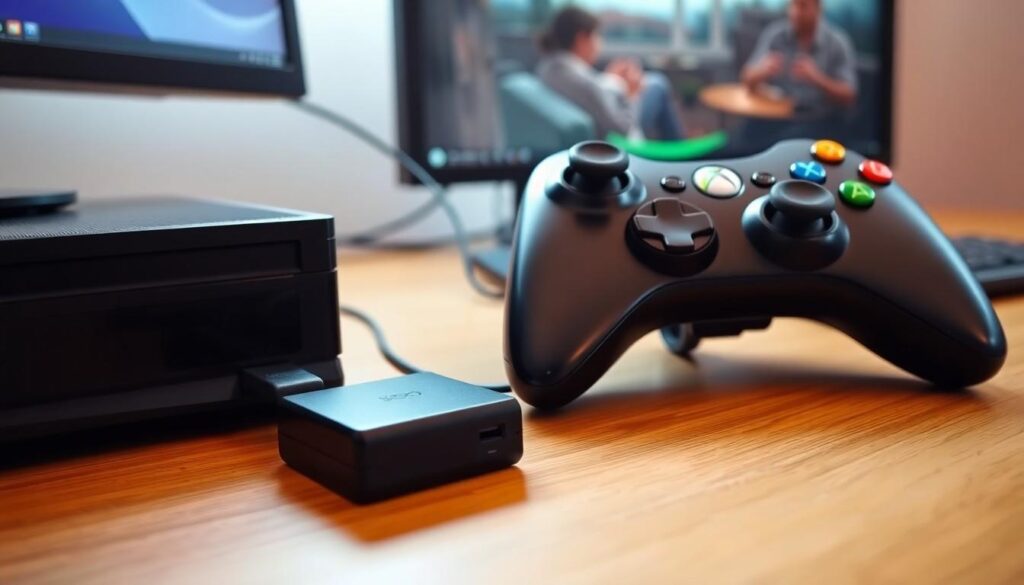
Connecting an Xbox 360 controller to a PC requires specific equipment and software to ensure a smooth setup. Vital components include the correct USB receiver and driver installations.
USB Wireless Receiver
A USB Wireless Receiver facilitates the connection of the Xbox 360 Wireless Controller to a PC. This device plugs into a USB port, allowing seamless wireless communication between the controller and the PC. Finding a compatible receiver is crucial, as the standard Xbox 360 Wireless Gaming Receiver works with Windows systems, providing a reliable connection for gaming enthusiasts. When using the receiver, confirm it’s recognized by the operating system, which should install necessary drivers automatically, enhancing usability right away.
Drivers Installation
Installing drivers ensures that the Xbox 360 controller functions effectively with the PC. Windows Update typically manages driver installations; however, manual installation might be necessary for certain setups. Users can download drivers from the official Microsoft website if automatic updates fail. Once the drivers are installed, checking the Device Manager helps to verify that the controller connects properly. Working drivers lead to optimal performance, allowing users to enjoy a variety of compatible games without hindrance.
Connecting Wired Xbox 360 Controller to PC
Connecting a wired Xbox 360 controller to a PC requires minimal effort. Locate a USB port on the computer and plug the controller’s USB cable into it. The operating system automatically detects the controller and installs the necessary drivers.
Most PCs support wired Xbox 360 controllers across different Windows versions, including XP, Vista, 7, 8, and 10. Many games recognize the controller without additional setup. For example, popular titles such as “Minecraft” and “Forza Horizon” offer out-of-the-box compatibility.
Verifying the connection is essential for optimal gaming performance. Access the Device Manager to confirm detection of the controller. If the device appears under “Human Interface Devices,” it’s ready to use.
Using a wired controller requires no extra software installation beyond what the operating system provides. Players gain immediate access to controller functionalities. Each game that supports controllers allows for a straightforward, immersive experience. Additionally, ensuring the cable remains intact minimizes disconnection issues.
Testing the controller within a game or through the Windows settings confirms its functionality. Unresponsive buttons or input delays may indicate faulty connections or hardware issues. Reseating the USB connection often resolves these problems.
Following these steps creates a seamless integration of the wired Xbox 360 controller into the PC gaming setup. Users enjoy a familiar interface and enhanced control over gameplay, maximizing their entertainment without unnecessary complications.
Connecting Wireless Xbox 360 Controller to PC
Connecting a wireless Xbox 360 controller to a PC involves a few straightforward steps. Follow these instructions to enjoy gaming without wires.
Syncing the Controller
Syncing the controller starts with the Xbox 360 Wireless Gaming Receiver. First, plug the receiver into a USB port on the PC. Next, press the connect button on the receiver. The green light will start flashing. After that, turn on the controller by pressing the Xbox button. You’ll find a small connect button on the top of the controller, which needs pressing. The light on the controller will spin and then remain on once it’s synced. This indicates a successful connection, allowing immediate use with compatible games.
Using Bluetooth (if applicable)
Some users may find using Bluetooth a viable option for connecting a wireless Xbox 360 controller. Ensure the PC has Bluetooth capabilities first. Then, turn on the controller and press the Xbox button. Next, hold down the sync button until the Xbox logo blinks. Open Bluetooth settings on the PC and search for devices. The controller should appear in the list; select it to connect. After completing this process, the Xbox logo will remain lit, confirming the connection. Note that not all Xbox 360 controllers support Bluetooth.
Troubleshooting Connection Issues
Connection issues with an Xbox 360 controller on a PC can arise despite following proper setup steps. First, check the USB connection for wired controllers. If the controller doesn’t respond, reseating the USB cable can often resolve the problem. Users may also consider trying different USB ports on the PC to ensure the issue isn’t related to a faulty port.
For wireless controllers, the Xbox 360 Wireless Gaming Receiver must be recognized by the PC. If the receiver’s LED isn’t lit, it may be disconnected or defective. Checking the connection status in Device Manager can help identify these issues. Users should also confirm that the receiver’s drivers are installed correctly to establish a stable link.
Sometimes, the Xbox 360 controller might not sync with the receiver. In such cases, pressing the connect button on both the receiver and controller may help re-establish a connection. Users should ensure that the controller has adequate battery power, as low batteries can cause performance issues.
Compatibility with specific games might also lead to perceived connection problems. Verifying game settings to ensure they recognize the Xbox 360 controller can help. If the game doesn’t support the controller, exploring compatibility settings or updating the game may be necessary.
Finally, regular driver updates contribute to optimal performance. Manually checking for updates through Windows Update or Device Manager can prevent many connection-related issues. By addressing these common troubleshooting steps, users can enjoy seamless gameplay with their Xbox 360 controllers.
Connecting an Xbox 360 controller to a PC opens up a world of gaming possibilities. With both wired and wireless options available users can easily enhance their gaming experience. Proper setup and troubleshooting ensure that everything runs smoothly.
By following the outlined steps and maintaining the necessary equipment users can enjoy seamless gameplay. Whether diving into intense action or exploring vast worlds the Xbox 360 controller provides a reliable and comfortable way to game on PC. With just a few simple connections users are ready to jump into their favorite titles and make the most of their gaming setup.


